Jumat, 09 Juli 2010
Kamis, 08 Juli 2010
Photoshop Tip: Image Pop Blur / Overlay Effect
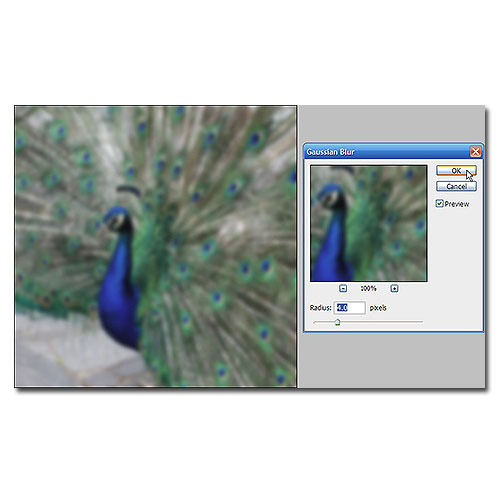
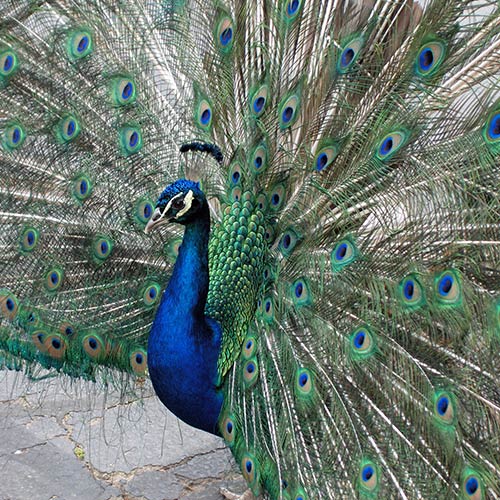
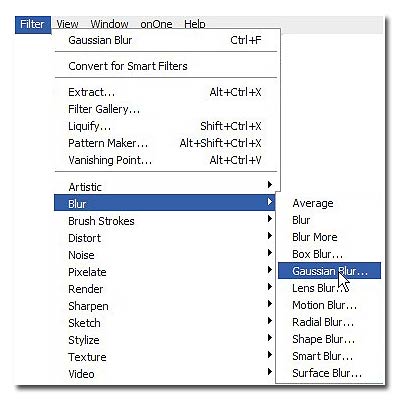
![]() Touch image for a before and after "Mouse Over" effect. This is one of those tricks most of you already know, but for those who don't, you're gonna love it. This is a simple trick that will make those light or over saturated images pop. Let's get started. Open an image you feel needs some help. Now, duplicate your picture either by dragging it to the "Create New Layer" icon next to the trash can at the bottom of your Layers Panel or hitting "Ctrl + J" on the keyboard. Next we're gonna apply "Gaussian Blur" (Filter/Blur/Gaussian Blur) now set the "Radius" slider to 4.0. Blurry isn't it? Now go to the "Layers Palette" and change the "Blending Mode" from "Normal" to "Overlay." What a difference! I sometimes adjust the "Opacity" level, and as seen here I set it at 80%. If you look at the before and after, you can see that this method makes the light tones lighter and the dark tones darker while softening it. Sometimes applying a higher percentage of "Gaussian Blur" along with a higher "Overlay" percentage gives a dreamier effect. That's it, hope it was fun. |
Selasa, 06 Juli 2010
Senin, 05 Juli 2010
Photoshop Tip: Scattering Brushes
This is a tip done in Photoshop CS3, and I'm not sure which older versions are compatible, certainly CS3 and newer.
To scatter a brush shape about randomly in different sizes and at different angles, click on your brush tool.
Click on the brushes tab up on the upper right corner of your Photoshop window (or hit F5).
Click on "Shape Dynamics." Set your "Size Jitter" slider somewhere between 50-75%. Ifyou don't want your brush size to get smaller than a certain size,set your "Minimum Diameter"slider to whatever percentage you think will fit. To change the angle of the brush, set the "Angle Jitter" slider low or high, depending on how much you want the brush to tilt to one side or the other. Make sure everything else is at 0% or off.
Now, click on "Scattering," and then set the sactter slider as low or high as you'd like. You can see how much it's scattering in the thumbnail. Click on "Brush Tip Shape." Move the "Spacing" slider to the right until the brush is spaced how you'd like. Make sure the rest is set at 0% or off.
That's it! Now paint with your brush.
NOTE: Everytime you want to do this with a brush, you will have to set these settiings to your liking, so play around with the controls and get to know the settings so it becomes second nature and comfortable.
This is a tip done in Photoshop CS3, and I'm not sure which older versions are compatible, certainly CS3 and newer.
To scatter a brush shape about randomly in different sizes and at different angles, click on your brush tool.
Click on the brushes tab up on the upper right corner of your Photoshop window (or hit F5).
Now, click on "Scattering," and then set the sactter slider as low or high as you'd like. You can see how much it's scattering in the thumbnail. Click on "Brush Tip Shape." Move the "Spacing" slider to the right until the brush is spaced how you'd like. Make sure the rest is set at 0% or off.
That's it! Now paint with your brush.
NOTE: Everytime you want to do this with a brush, you will have to set these settiings to your liking, so play around with the controls and get to know the settings so it becomes second nature and comfortable.
New Look
Yeah, new look, ...again.
I'm bettin' you guys are thinking I've got "ADD" or
commitment issues.
Truth be, I personally love a dark layout, the images are
presented better, they tend to have a pop to them, but I
agree on the white print on a black background, not cool!
So, due to the nasty summer heat, which has come earlier
than expected, I thought I would go back to a light and
soothing layout,I think it dropped a few degrees already
since posting, now, does this layout make me look fat?
I'm bettin' you guys are thinking I've got "ADD" or
commitment issues.
Truth be, I personally love a dark layout, the images are
presented better, they tend to have a pop to them, but I
agree on the white print on a black background, not cool!
So, due to the nasty summer heat, which has come earlier
than expected, I thought I would go back to a light and
soothing layout,I think it dropped a few degrees already
since posting, now, does this layout make me look fat?
Have a wonderful Monday
Clouds Texture Set
The images in this set have been posted individually or in various sets,
but never all together, so I thought I would offer these as a set.
Sabtu, 03 Juli 2010
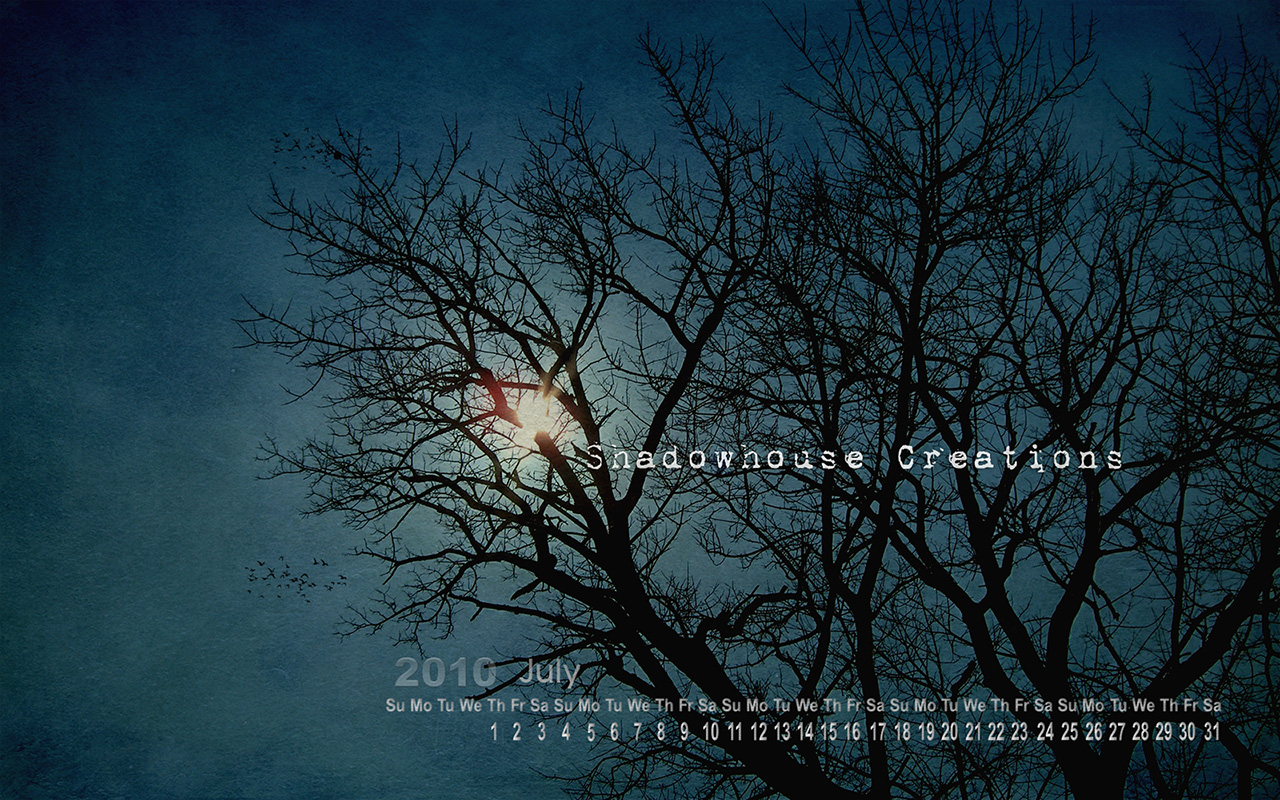
July Wallpaper Calendar
Click on image to view larger.
A little something,a small gift for you.
Here's a wallpaper calendar for July, the image is an old photo
I took a few years back at the old house.
1024 X 768 Download
Langganan:
Postingan (Atom)