Tampilkan postingan dengan label Vintage. Tampilkan semua postingan
Sabtu, 08 September 2012
Tinted Vintage Photo Textures
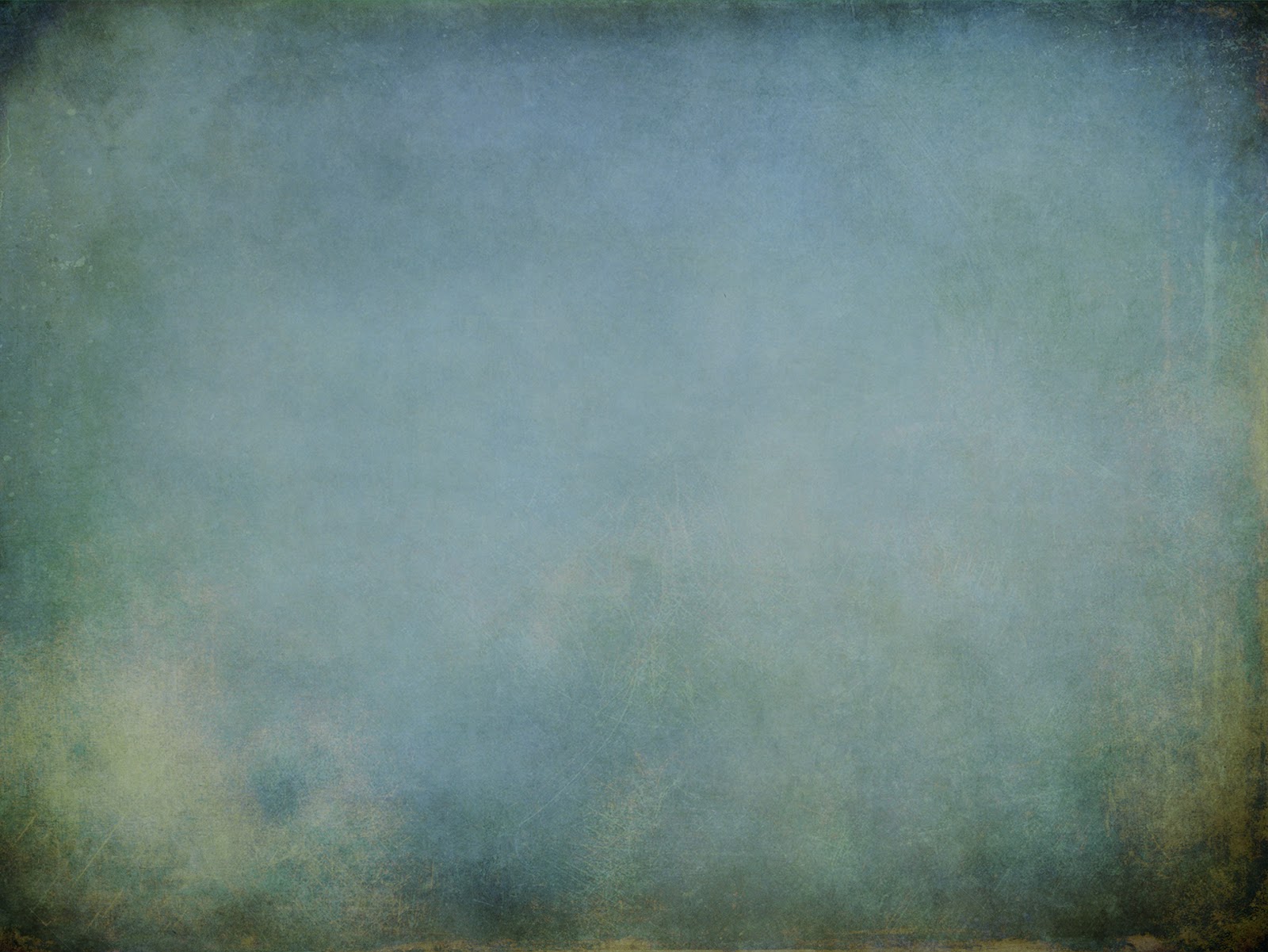
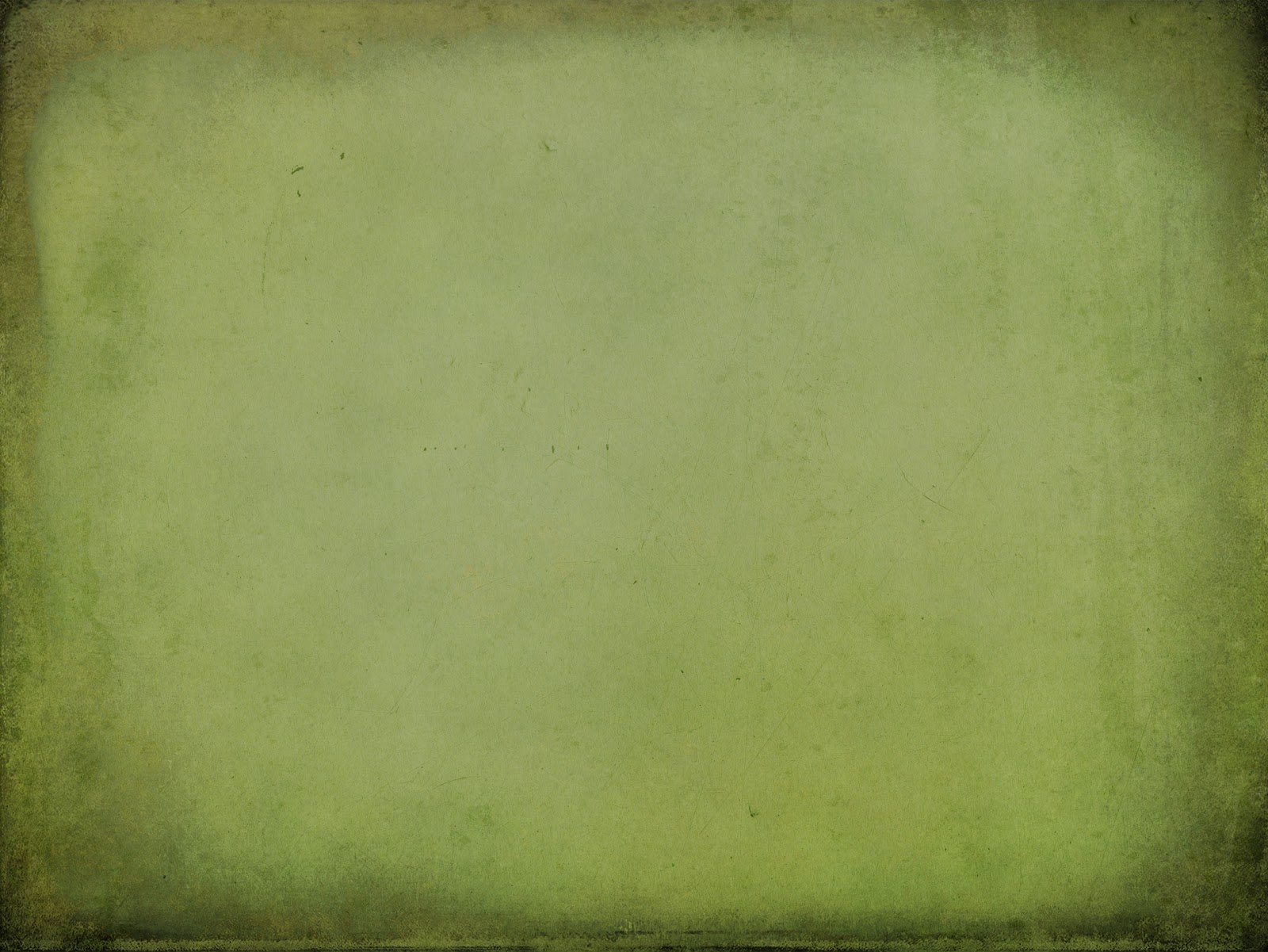
Tinted Vintage Photo Textures contains nine unique textures which can be applied
to images to present different vintage effects with the help of a photo editor like
Photoshop or an equivalent tool.
Textures included:
1.Softly Blurred Edges - 2.Ghost Matter - 3.Burnt Cream - 4.Blurred Stucco
5.Alien Substance - 6.Blurred Polaroid - 7.Blurred Smoke - 8.Dirty Spot
9.Scratched Overlay
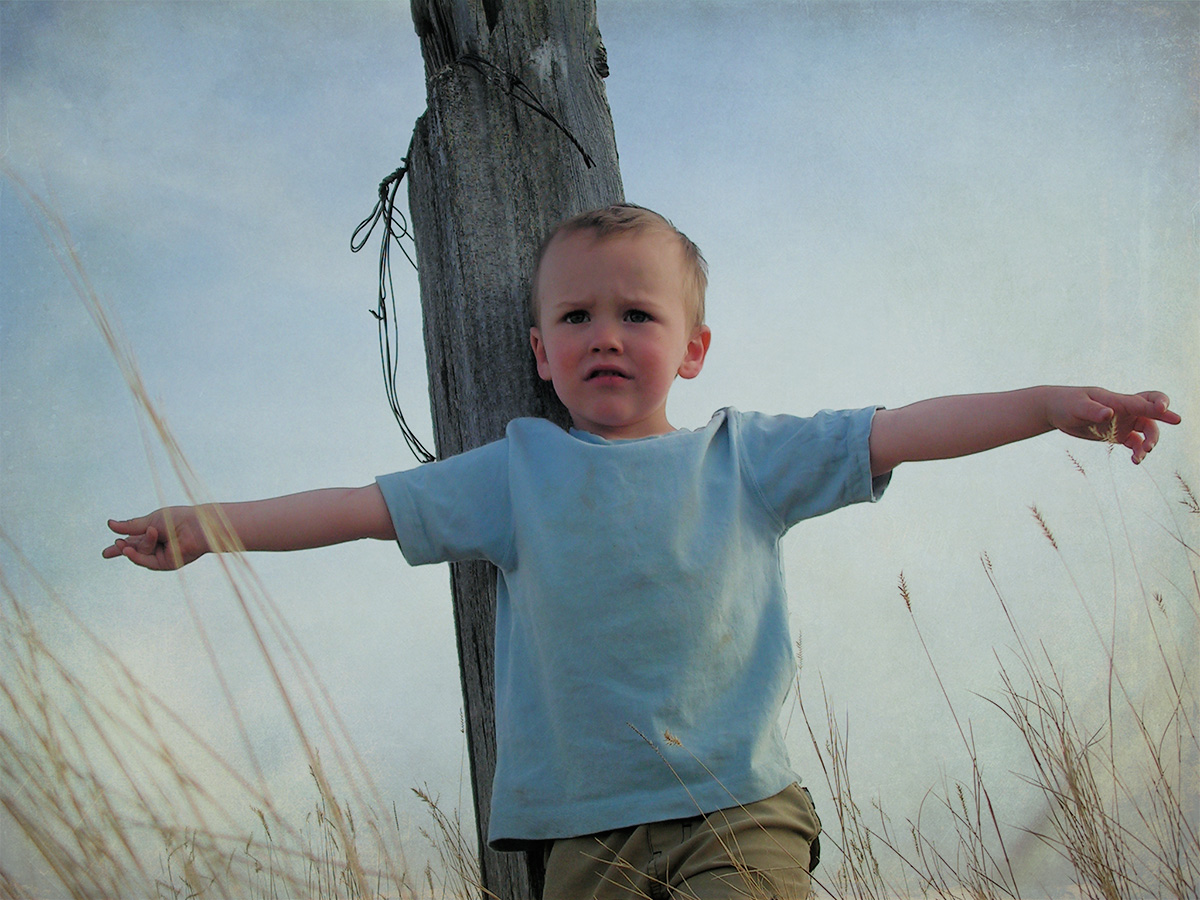
Example One: Before
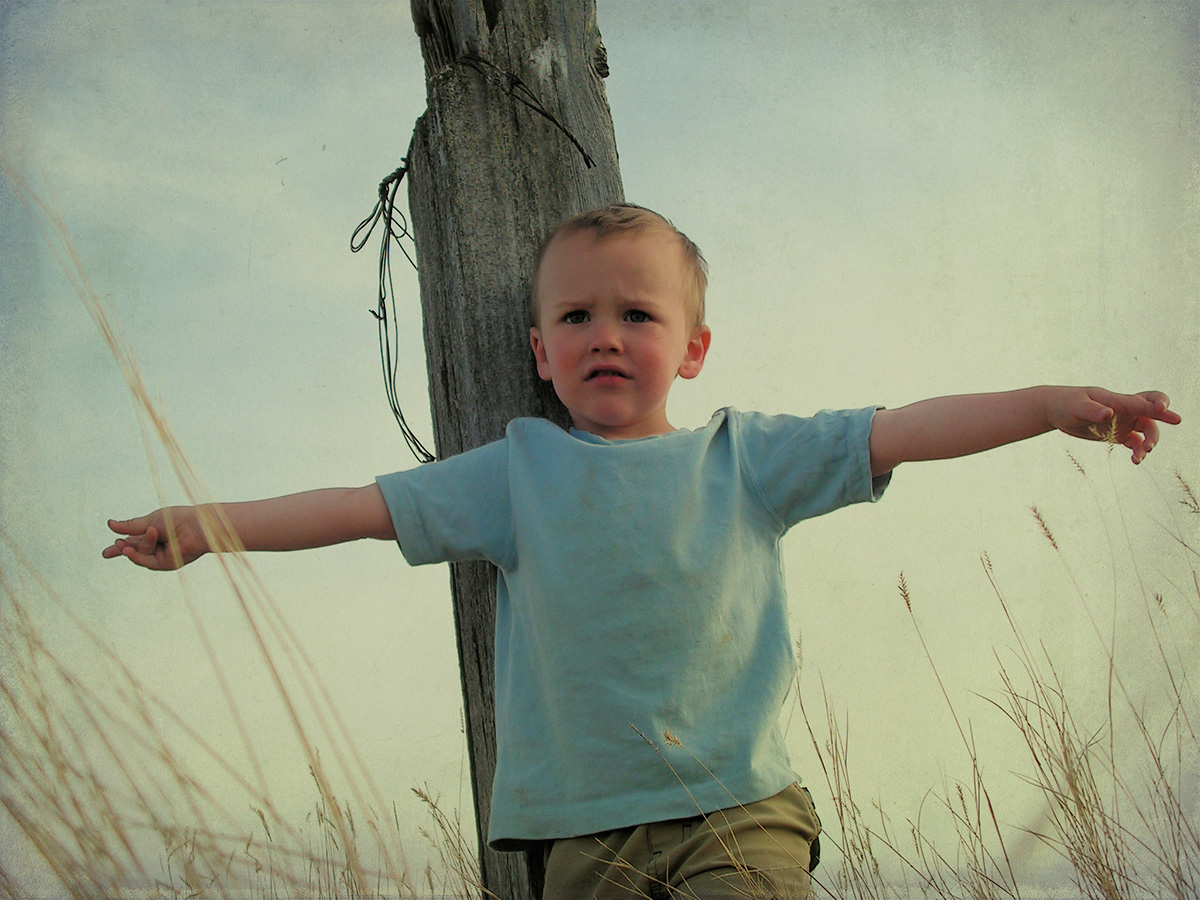
Example One: After
Example 1 - Shown Above
Step 1: Open an image to use.
Step 2: Apply "Softly Blurred Edges" texture, set the layer mode to (Saturation)
and the Opacity at 60%.
Step 3: Apply "Ghost Matter" texture, set the layer mode to (Color Burn)
and the Opacity at 50%.
Step 4: Apply "Burnt Cream" texture, set the layer mode to (Color Burn)
and the Opacity at 38%.
Step 5: Apply "Blurred Stucco" texture, set the layer mode to (Multiply)
and the Opacity at 59%.
Step 6: Apply "Alien Substance" texture, set the layer mode to (Soft Light)
and the Opacity at 100%.
Step 7: Optional / Apply "Blurred Polaroid" texture, set the layer mode to (Lighter Color)
and the Opacity at 100%.
Other Examples
Before
After
Before
After
Before
After
Example 4: Posted Above
Applied "Blurred Smoke" texture and set the Layer Mode to "Screen" and the opacity is set at 100%.
Before
After
Example 5: Posted Above
Step 1: Applied "Dirty Spot" texture and set the Layer Mode to "Saturation" and the opacity set at 100%
Step 2: Applied "Blurred Smoke" texture and set the Layer Mode to "Screen" and the opacity set at 25%
Step 3: Applied "Scratched Overlay" texture and set the Layer Mode to "Color Burned" and the opacity set at 60%
"I believe this set can be of some value to your texture catalog, hopefully it can be
of some use to you and your work."
DOWNLOAD ZIPPED SET HERE:
Jumat, 08 Juni 2012
Shadowhouse Creations PostCard Set
Shadowhouse Creations PostCard Set contains 10 very large hand made post cards,
each has a unique vintage feel and color.
Hope this set can be of some small use.
DOWNLOAD THE SET HERE:
OR DOWNLOAD HERE
Shadowhouse Creations Photo Grunge Textures-Backgrounds
Shadowhouse Creations Photo Grunge Textures-Backgrounds contains 10 very large
textures / which can also be used as backgrounds. The set has an old vintage scratched
and grunge effect perfect for turning photographs to look like aged photos.
Hope this set may be of some use.
Peace
DOWNLOAD THE SET HERE:
OR DOWNLOAD HERE
Senin, 28 Maret 2011
Retro Color Masks Set
Retro Color Masks Set contains nine textures, each texture measures 2000 X 2000 pixels in size. Have fun.
Examples shown below.
Download Zipped Set Here:
Kamis, 24 Maret 2011
Raised Paper Texture Set
Raised Paper Texture Set contains eight soft vintage toned papers that have a slight raised effect. Each texture measures 2600 X 1729 pixels in size. Hope these may be of some use ....have fun.
Small samples of textures in the set shown below.
Download The Zipped Set Here:
Jumat, 04 Februari 2011
Another Retro Vintage Effect Tutorial
Seems like everywhere you look, there's an image with a retro/vintage look effect. There's so many ways to achieve this effect, whether it be filters, presets, actions, or textures, I'm gonna show you a simple way, which might seem long but the more you work with the tools within Photoshop such as levels, curves, photo filters among others the easier it will get, plus you may learn some new tools you've never used before.
1. Open an image in Photoshop (Background Layer)
2. Go to image / adjustments / levels / use these settings (0 - 1.20 - 255)
3. Next go to image / adjustments / curves / set a point at (74 and 50)
4. Set another point at (188 and 97)
5. Now go to image / adjustments / brightness/contrast and set brightness to (+5) and contrast to (+3)
6. Now we're gonna set 2 photo filters, go to image / adjustments / photo filter, first - color (AC7A33) density 75% then press OK. Second - color (31260C) density 60%.
7. Make a new layer and fill it with a dark blue (0C3088) set the opacity to 70%, fill at 80%, and blending mode to (lighten)
8. Make another layer and fill it with a light orange (EFD56C) set the opacity to 50%,leave the fill at 100%, and the blending mode to (multiply)
9. Next go to image / adjustments / levels / and use (26 - 1.00 and 238)
10. Now make a duplicate of the background layer then go to filter / sharpen / and click sharpen, now drag the duplicate layer to the top.
11. Last, "I heard that" go to image / adjustments / desaturate / set the opacity and layer mode to your liking, here I sat the layer mode to (normal) and the opacity to (27%)
That's it, we're done. I know this may seem a long process, but the more you work with curves and levels the easier it will get.
Rabu, 19 Januari 2011
Selasa, 23 November 2010
Vintage Canvas Texture Set
Minggu, 03 Oktober 2010
2 New Layer Masks ~ White or Black
White Vintage Mask Example.
White Vintage Mask Download
Black Vintage Mask Example
Black Vintage Mask Download
Selasa, 06 Juli 2010
Rabu, 30 Juni 2010
Minggu, 16 Mei 2010
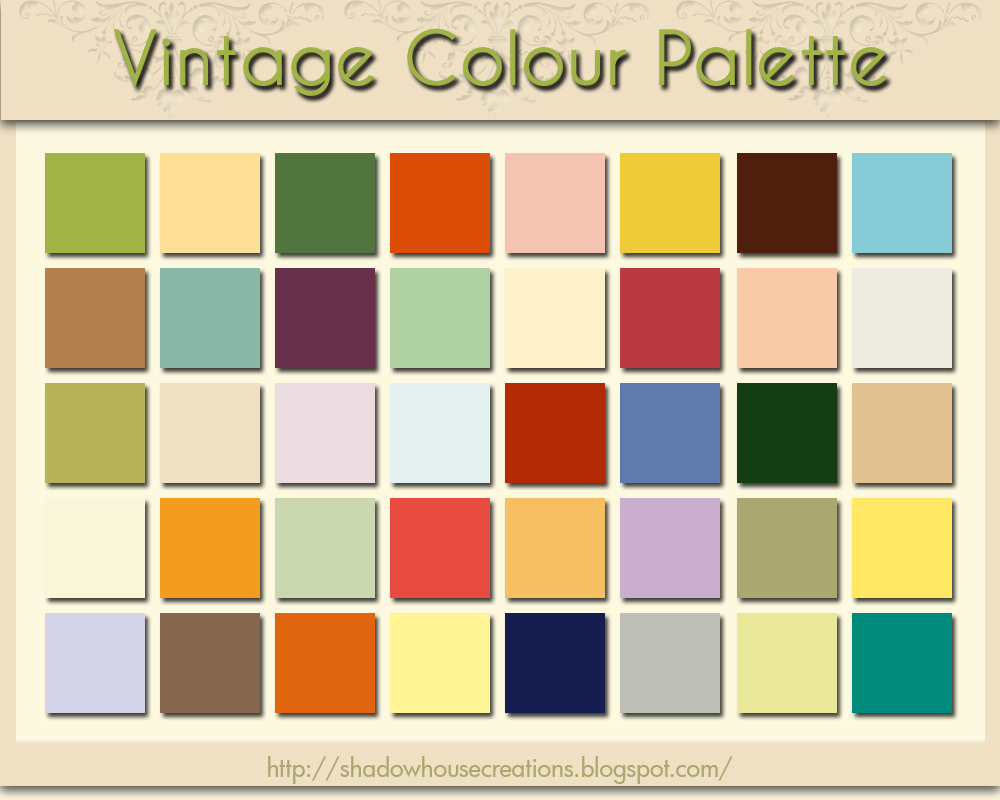
Vintage Colour Palette
Click Image For Larger View
VCP ~ Download
Just a little something I put together to show the vintage
tones I use quite often in photoshop. When I need a colour
I just put the photoshop eyedropper on the square I want and
make a new fill layer then adjust the opacity and layer mode
to my liking.
If it may be of any use, feel free to download.
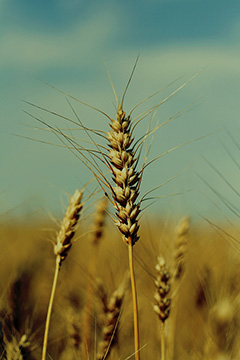
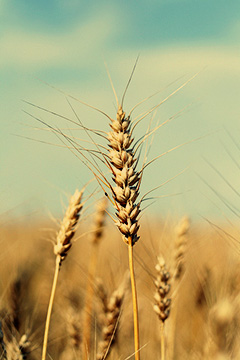
The after example 1 posted, shows the (RGB) green colour swatch
(170-167-112) applied at 86% opacity at Linear Burn mode.
I know there's plenty of actions to accomplish the same results
but I like learning the tools and their uses rather than the one
click quick fixes. I find it fun to tinker.
Sample 2 was composed,using (RGB) color (235-196-93)
set at 48% opacity and Linear Burn mode, plus the (RGB)
color (159-196-194) set at 38% opacity and Color Burn mode.
VCP ~ Download
Just a little something I put together to show the vintage
tones I use quite often in photoshop. When I need a colour
I just put the photoshop eyedropper on the square I want and
make a new fill layer then adjust the opacity and layer mode
to my liking.
If it may be of any use, feel free to download.
The after example 1 posted, shows the (RGB) green colour swatch
(170-167-112) applied at 86% opacity at Linear Burn mode.
I know there's plenty of actions to accomplish the same results
but I like learning the tools and their uses rather than the one
click quick fixes. I find it fun to tinker.
Sample 2 was composed,using (RGB) color (235-196-93)
set at 48% opacity and Linear Burn mode, plus the (RGB)
color (159-196-194) set at 38% opacity and Color Burn mode.
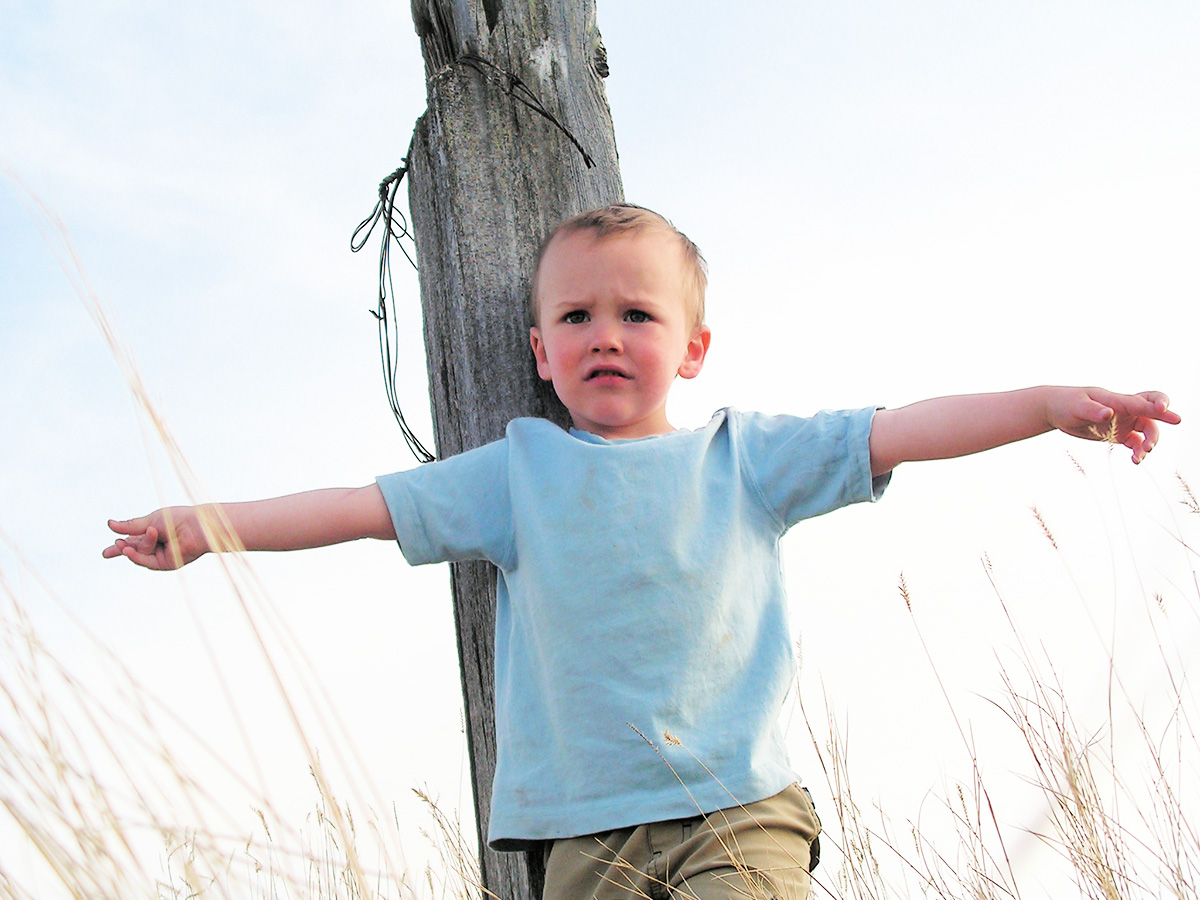
Original Image After Image 1 After Image 2
Jumat, 07 Mei 2010
Rugged Vintage Tone Texture Set
Here's a new set called "Rugged Vintage Tone Textures."
Each texture is 2591 X 1944 pixels in size and can be used
for the textured look itself or as a vintage tone effect.
The textures can produce the toned effects like a photoshop
ATN file "action file" as the examples show below.
All I did was to apply the texture on top of the image and
set the photoshop layer mode to "Multiply" and the opacity at 50%.
Each texture is 2591 X 1944 pixels in size and can be used
for the textured look itself or as a vintage tone effect.
The textures can produce the toned effects like a photoshop
ATN file "action file" as the examples show below.
All I did was to apply the texture on top of the image and
set the photoshop layer mode to "Multiply" and the opacity at 50%.
Click images for larger view
Langganan:
Postingan (Atom)